

Register
Kolide’s default (and recommended) configuration treats your first registered device differently from any devices you register later.
Your first device is implicitly trusted when you are able to log in with your SSO credentials. Any other devices you register will require either an admin’s approval or your confirmation from another registered device.
Registering your first computer
Click on the Kolide icon in your system’s menu bar and select Register Device.

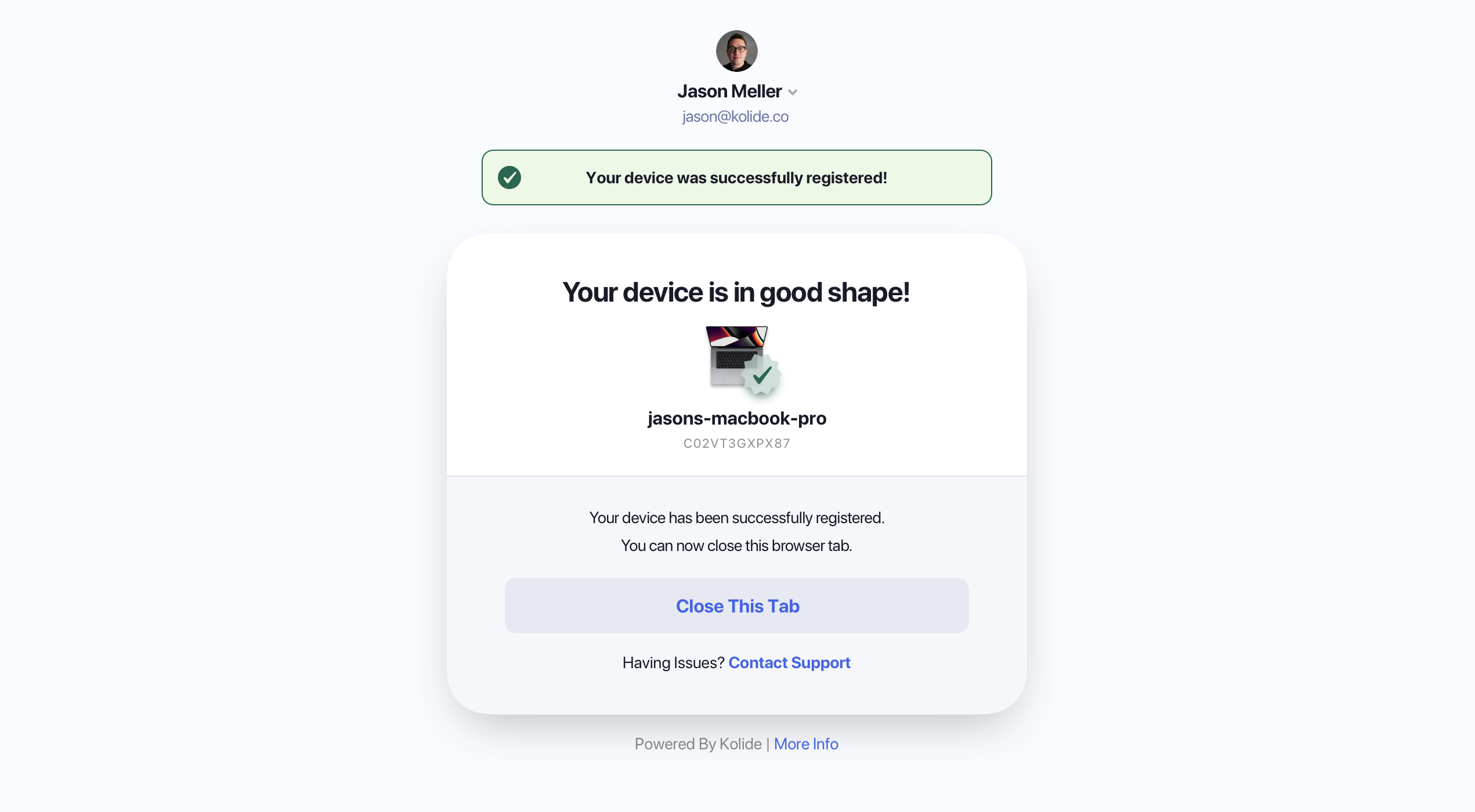
In the browser that opens, you may be asked to authenticate via your authentication provider. Once authenticated, your device will be automatically registered.
You will be redirected to a verification page where your device’s posture will be checked. While Kolide uses this opportunity to ask you to take care of any issues that may block your device on the next authentication attempt, this step is optional; the device is already registered.
Registering more devices
- Follow the steps for registering your first computer
- Instead of being redirected to the verification page, you will be shown one of two screens depending on your organization’s settings
Option 1: Self-approval
If your organization allows self-service registration, you will see a screen similar to the following screenshot:
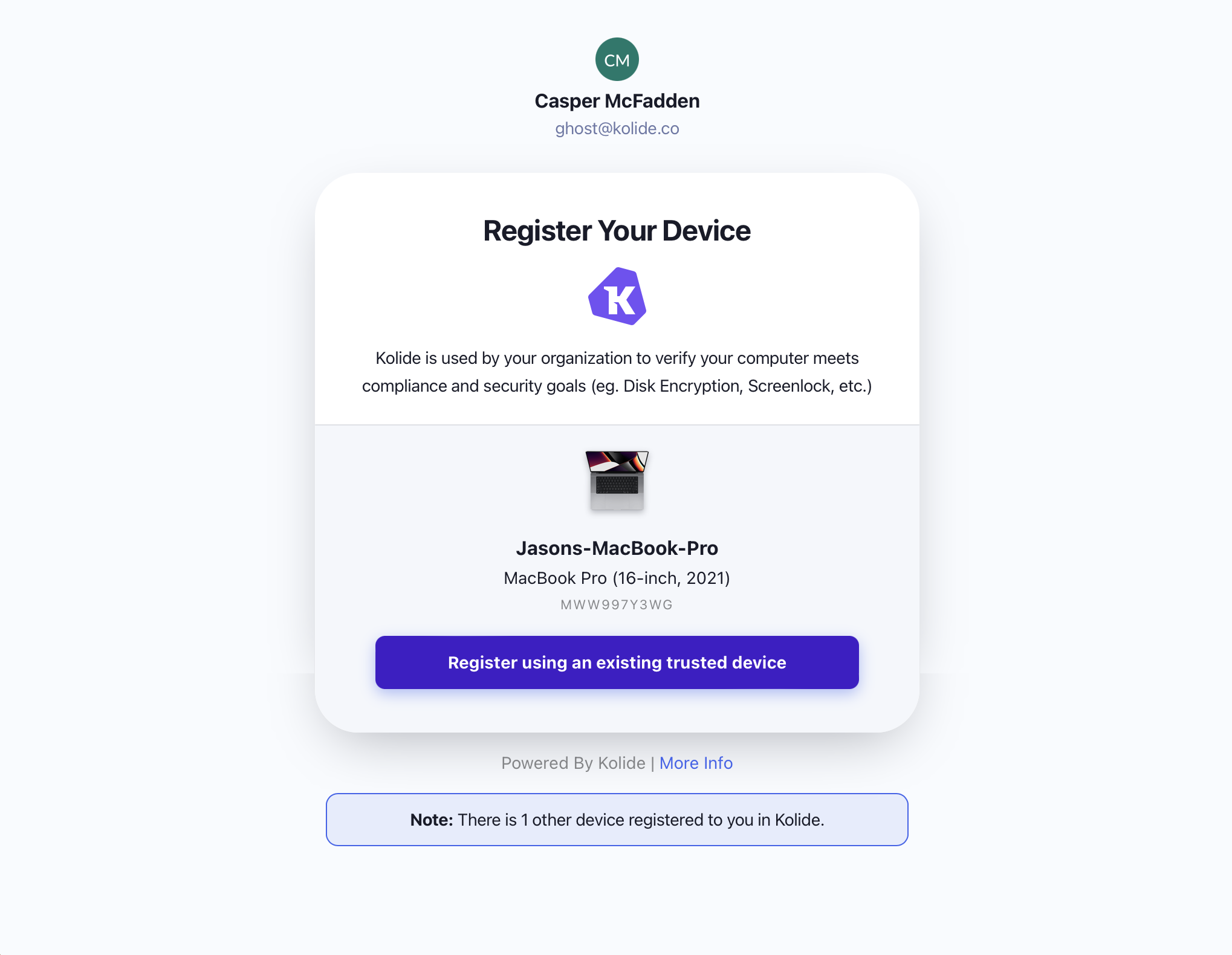
Click Register using an existing trusted device.
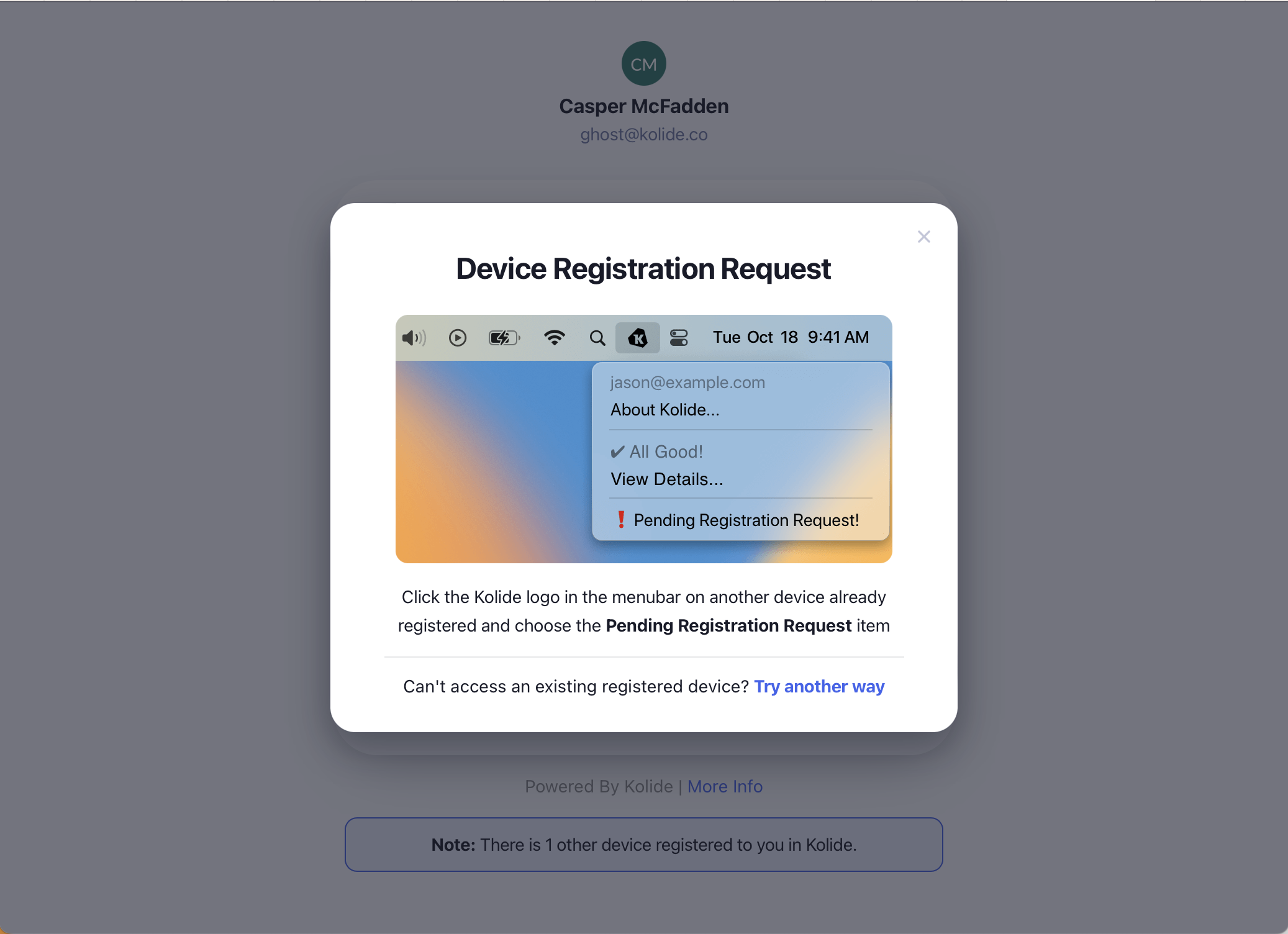
This will open a modal explaining that on an another registered device you need to click on the Kolide icon in your menubar (or system tray on Windows) and click the Pending Registration Request item.
Once clicked, a web browser will open for you to confirm the final approval.
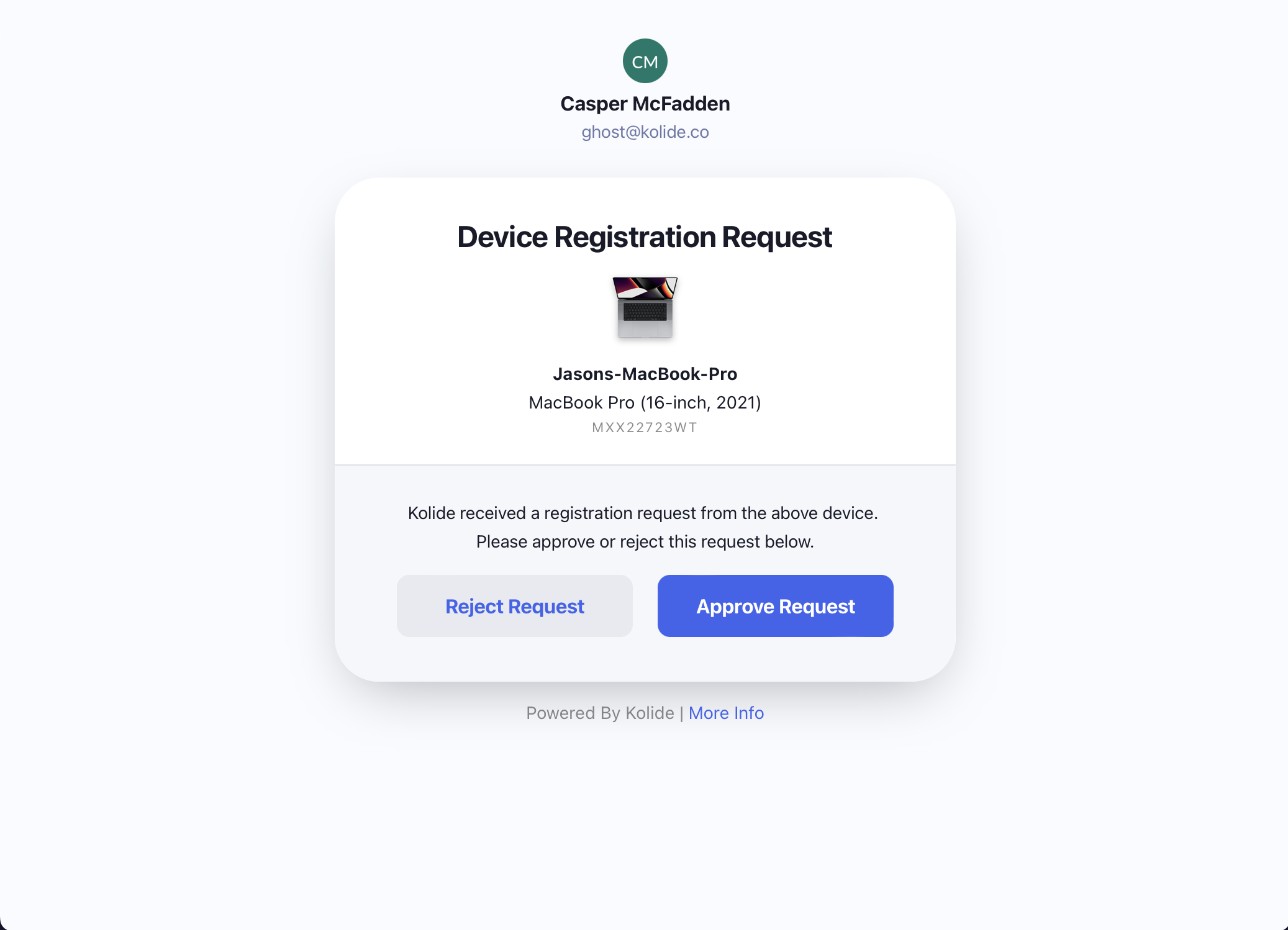
Once you click approve, the device you are attempting to register will be automatically registered and authentication will proceed as usual.
Option 2: Admin approval
If your organization does not allow self-service registration or you have chosen not to self-approve, your registration request must be approved by a Kolide admin, usually a member of your organization’s IT or Security teams.
Fill out the presented form
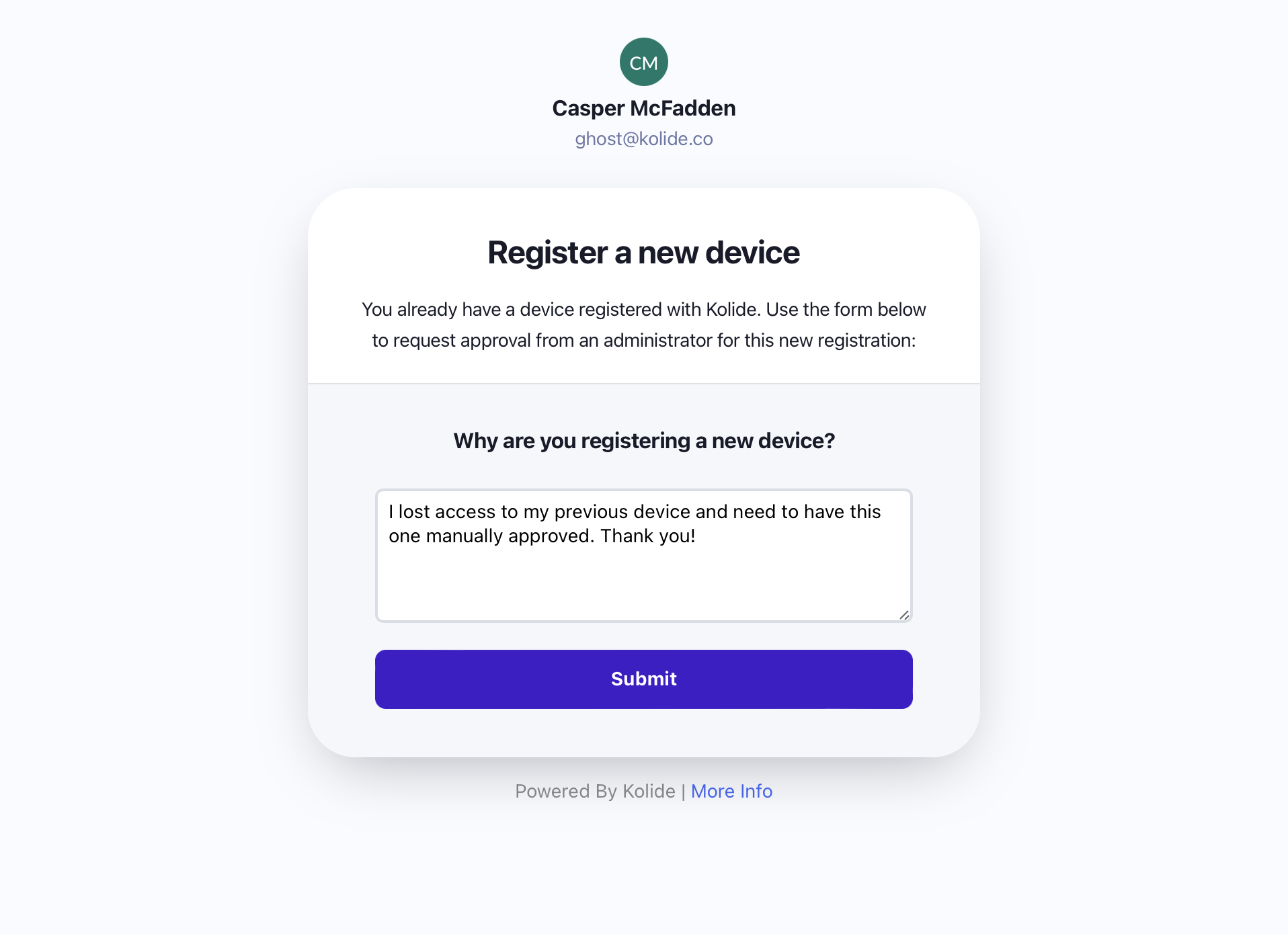
Wait for approval from a Kolide admin. If your organization has a formal process for requesting IT assistance, like a ticketing system or help desk email inbox, make sure to follow that process.
Registering mobile devices
To register mobile devices that run iOS or Android, follow these steps:
- Make sure you have the Kolide app on your iOS or Android device.
- Open the Kolide app. If you’ve already registered your device with another organization, select Register with a new Organization.
- Choose whether you want to register your device with your email address or a code.
- To register with your email address, you’ll be asked to sign in with your organization’s SSO provider.
- To register with a code, you’ll need another registered device to scan or enter the required code.
- Follow the on-screen steps depending on your choice.
You’ll now need to confirm your device’s registration. Depending on your organization’s settings, you’ll either be able to confirm the registration yourself, or you may need an admin to confirm your registration.
If your organization allows self-confirmation, you’ll see a list of registered devices that you can use to confirm your mobile device:
- On a Mac, select the Kolide icon in the menu bar > Pending Registration Request, then approve the registration request.
- On a Windows PC, select the Kolide icon in the system tray > Pending Registration Request, then approve the registration request.
- On another mobile device, open the Kolide app, then approve the registration request.
If you don’t have another registered device available, select I need help, then select Submit an Admin Request. Include a brief explanation about why you’re registering a new device, then select Submit.
If your organization doesn’t allow self-confirmation, your registration request will automatically be sent to an admin for confirmation.
After your registration is confirmed, you’ll be able to use your mobile device to authenticate.